

Need Help?
+91 9043800129

It only takes a few minutes. Follow these 7 steps; each one has a picture so you know exactly what to look for.
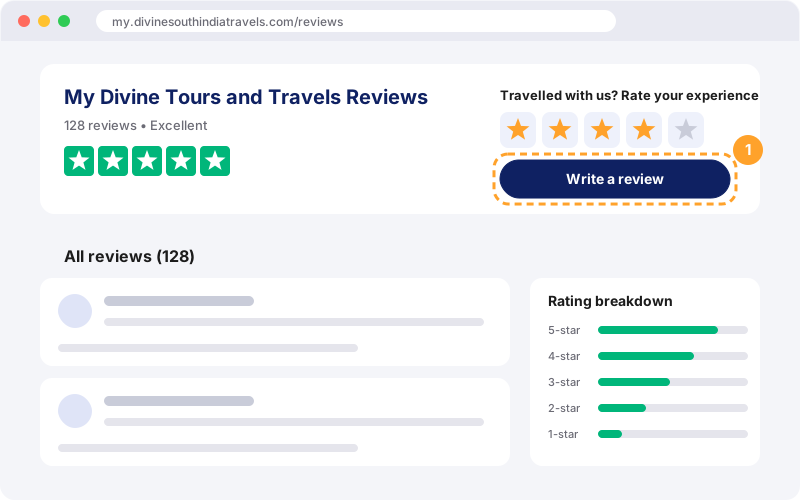
Go to the Reviews pageGo to the Reviews page. Click the orange-highlighted "Write a review" button (marker 1), or tap one of the five stars to start with that rating already chosen.
You can also sign in first with the "Sign in" link under the button.
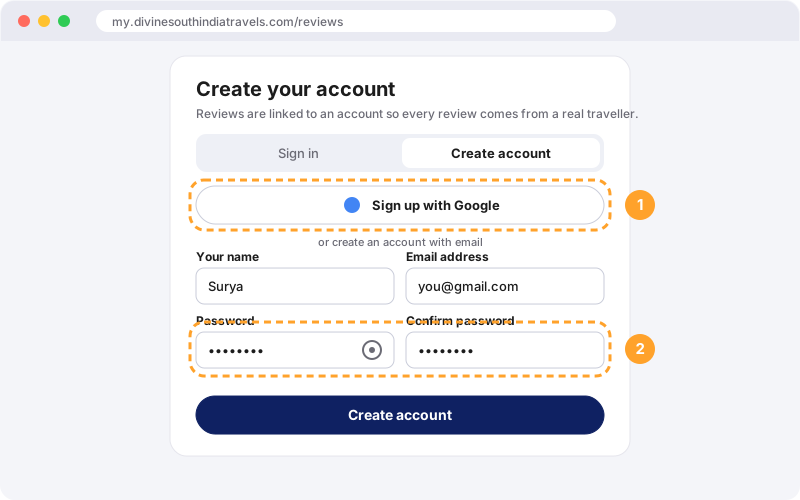
Reviews are linked to an account so every review comes from a real traveller. The fastest way is "Sign up with Google" (marker 1). Or create an account with your name, email and a password (marker 2).
Tap the eye icon in a password box to show or hide what you typed. If you already have an account, use the "Sign in" tab.
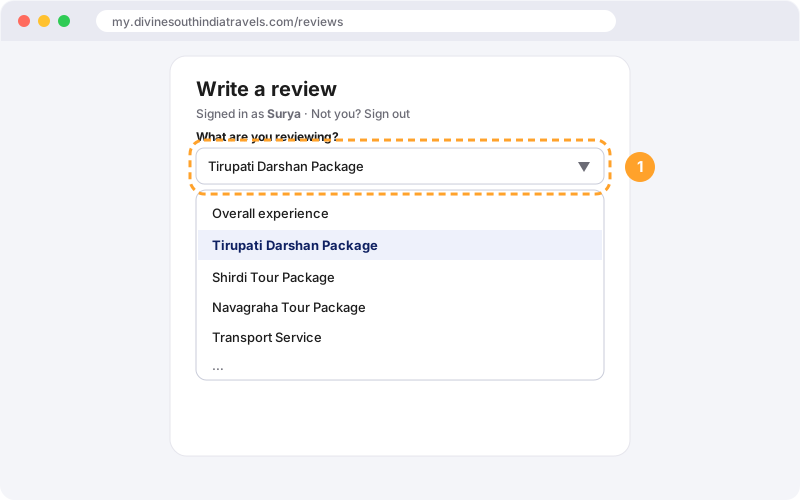
Pick the service you used from the list (marker 1): for example the Tirupati Darshan Package, Transport Service or Overall experience.
You can write one review for each service. Choosing a service you already reviewed lets you update that review.
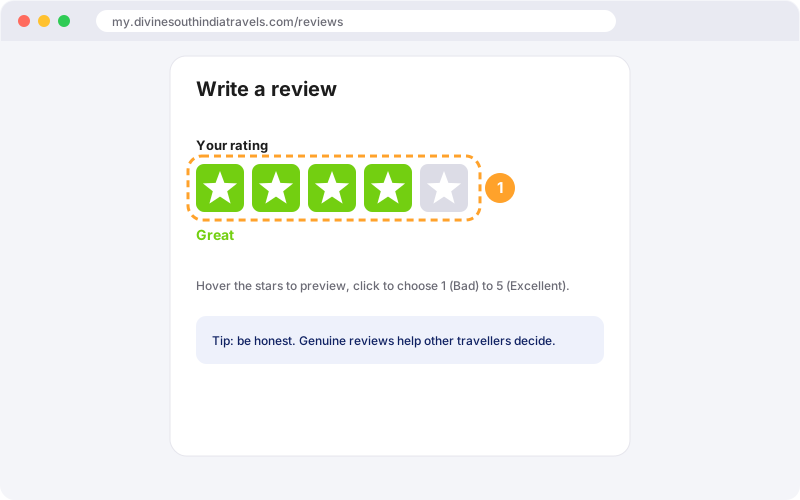
Select 1 to 5 stars (marker 1). 1 star means Bad and 5 stars means Excellent. The word under the stars confirms your choice.
A rating is required before you can submit.
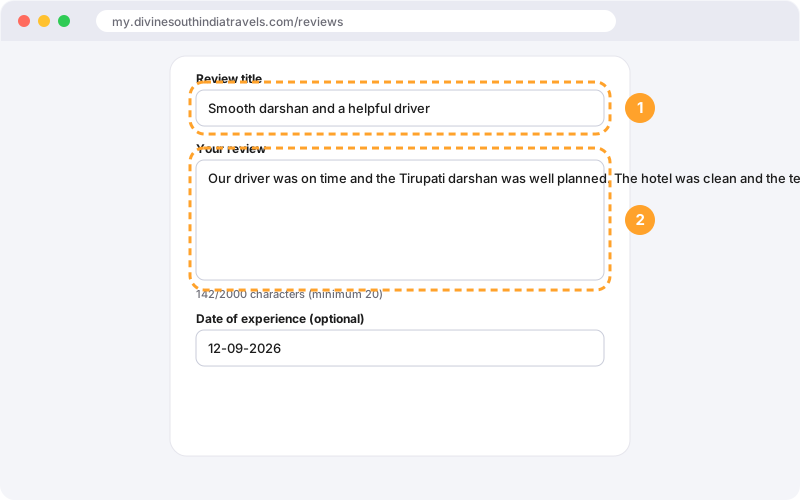
Give your review a short title (marker 1), then describe your trip (marker 2): the darshan, the driver, the hotel and our support. Write at least 20 characters. You can also add the date of your experience.
Please do not add links or personal phone numbers. Your name appears as first name and last initial.
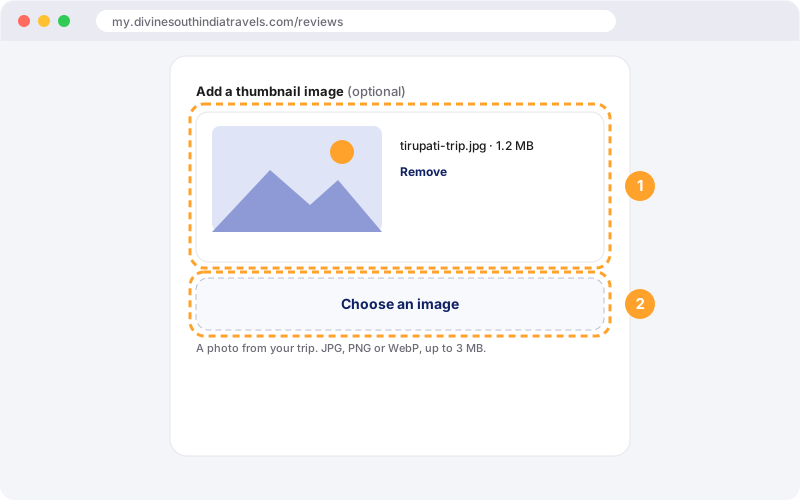
Press "Choose an image" (marker 2) to add a photo from your trip. A preview appears (marker 1). Use "Remove" if you want to pick a different one.
JPG, PNG or WebP images up to 3 MB are accepted.
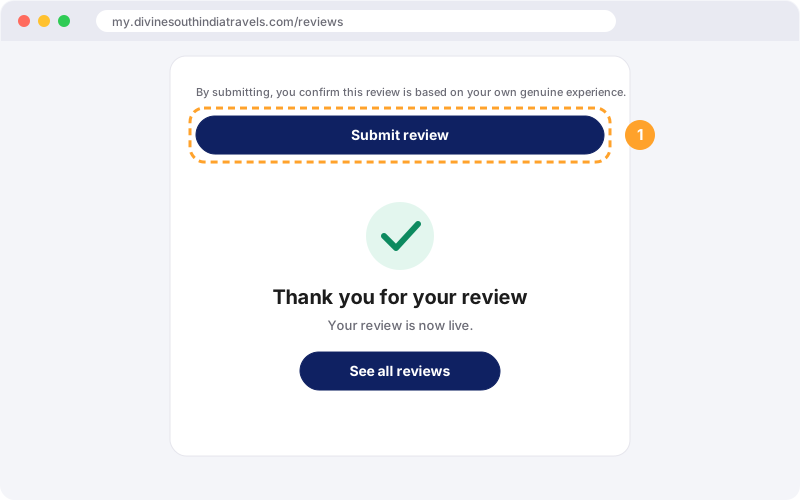
Press "Submit review" (marker 1). Your review goes live straight away and you will see a thank-you message.
Changed your mind? Open "Write a review" again, choose the same service and update it.
Yes. Reviews can only be written by signed-in visitors, so every review is from a real traveller.
You can write one review for each service. Submitting again for the same service updates your earlier review.
Reviews appear only on the website where you wrote them.
Our team can hide reviews that break our guidelines (for example abusive or off-topic content). If you think this was a mistake, please contact us.
Fill in your details and our travel expert will contact you shortly.